Getting Started with Margin SIM
- getting-started
- margin
- robinhood
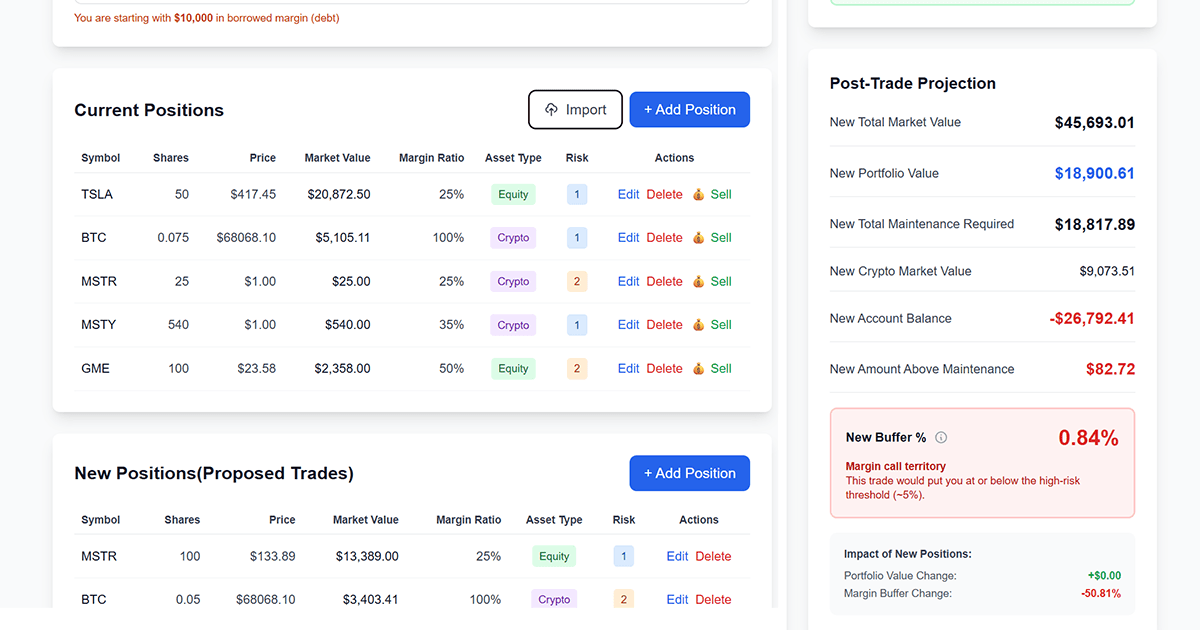
Margin Risk Simulator helps you see exactly how much room you have before a margin call—using the same logic Robinhood uses. Here’s how to get the most out of it.
Add your positions
Start by adding your current holdings: symbol, shares, and price. You can enter positions manually or use Import to upload a CSV for larger portfolios. Toggle Robinhood Mode on if you want the math to match Robinhood’s margin behavior (crypto at 100% maintenance and excluded from the buffer denominator).
Run stress tests
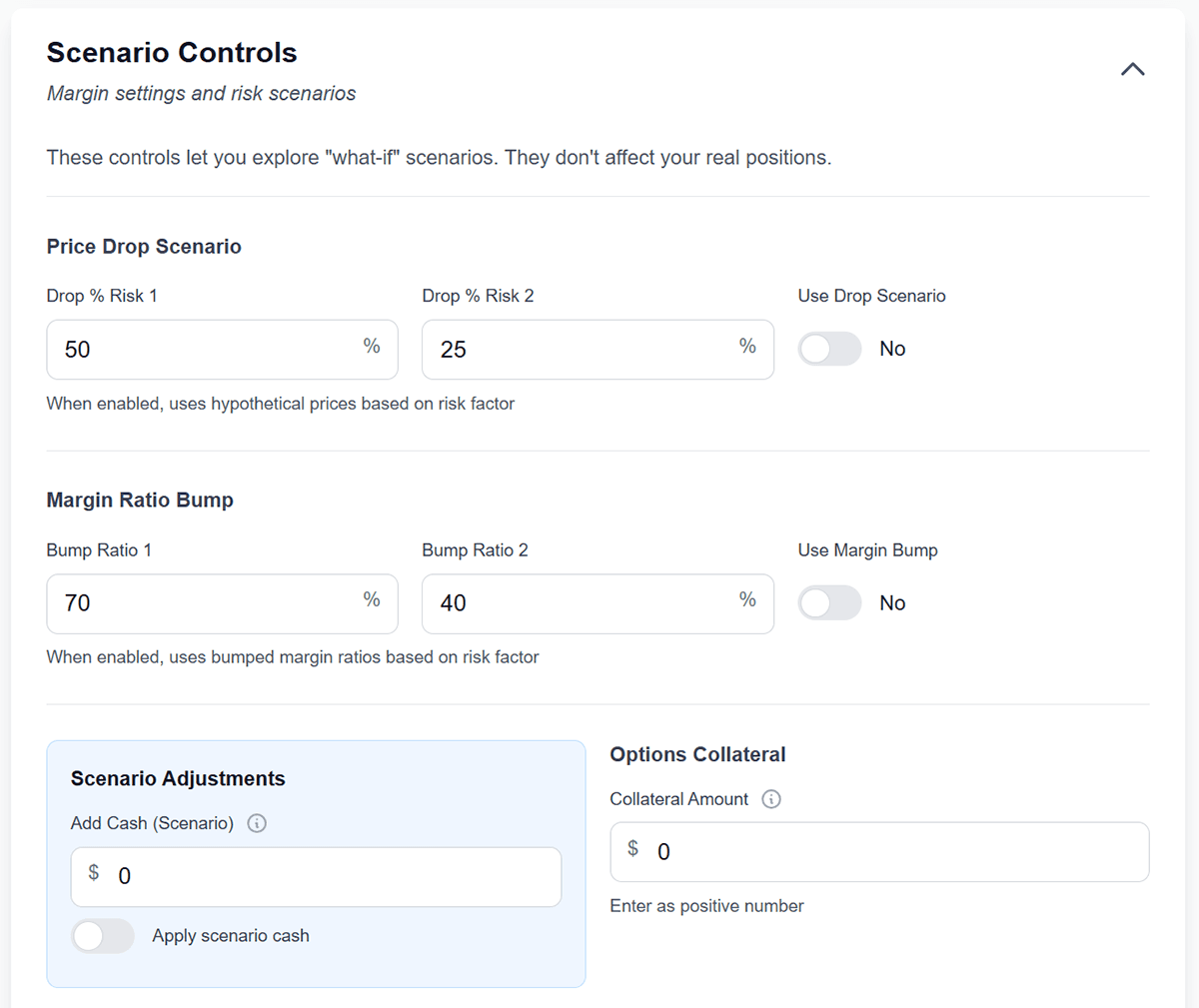
Use Scenario Controls to apply price drops (e.g. 20% for risk 1, 10% for risk 2) and see how your buffer changes. If you’re in margin call territory, try the Liquidation feature to simulate selling positions—proceeds use the same scenario prices so you see a realistic “rescue” amount.
Check post-trade impact
Add proposed buys in Proposed Trades to see how new positions would affect your margin. The Post-Trade Projection updates in real time so you can size trades safely.
Related reading
- What Is a Robinhood Margin Buffer? How to Calculate Yours
- Robinhood Margin Calls Explained: What Triggers One and What to Do
- How to Calculate the Impact of a New Trade on Your Robinhood Margin
Ready to go deeper? Try the in-app Ask AI assistant for explanations of any number on the screen (no financial advice—just clarity).